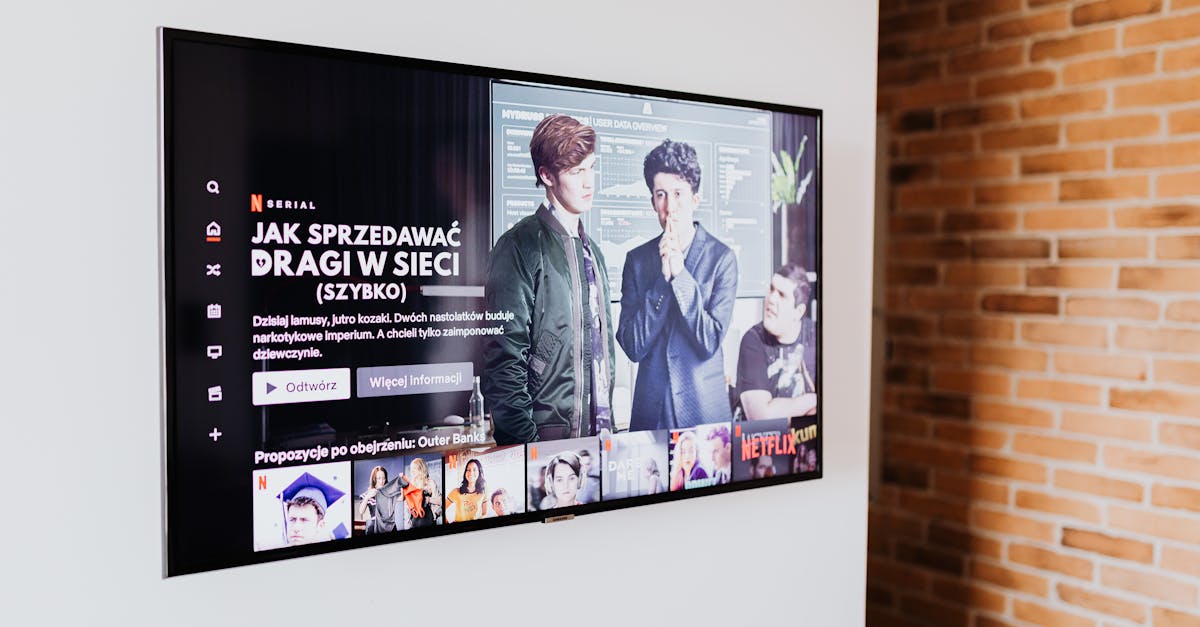
7 Reasons Your Smart TV Feels More Frustrating Than Fantastic
When you bought your smart TV, you probably envisioned a future of effortless streaming, intuitive voice commands, and a sleek, centralized entertainment hub. I certainly did. The reality, for many of us, is often a daily struggle: slow interfaces, confusing menus, endless updates, and a general sense that this ‘smart’ device is anything but. Instead of a fantastic upgrade, it feels like another gadget demanding attention and patience. I’ve spent years navigating the evolving landscape of smart home tech, and I’ve come to realize that the problem often isn’t the TV itself, but a combination of overlooked settings, network issues, and a fundamental misunderstanding of how these devices are designed to operate.
I remember one particularly frustrating evening when my seemingly high-end smart TV took nearly two minutes to load a streaming app. My family was gathered, popcorn ready, and we just stared at a spinning wheel. It wasn’t my internet, and the TV was less than a year old. The culprit, as I later discovered, was a common but often ignored setting buried deep in the menus. That experience, and many others like it, led me to dig into why these devices, designed for convenience, frequently create so much friction. It turns out there are a few core issues that consistently turn the dream of a smart TV into a daily grind.
Key Takeaways
- Your smart TV’s processor speed and internal storage often limit its performance more than your internet connection.
- Bloatware apps and unnecessary background processes actively slow down your smart TV’s responsiveness.
- Neglecting privacy settings can lead to aggressive, performance-sapping personalized ads and data collection.
- Subpar Wi-Fi signal strength, not just bandwidth, often causes stuttering and loading delays.
- Automatic software updates, while important, can disrupt usage and introduce new performance issues.
- Poorly integrated external devices can create input lag and complicate navigation.
- Many ‘smart’ features are underutilized or misunderstood, leading to user frustration rather than enhanced experience.
1. You’re Blaming Your Wi-Fi When It’s Actually the TV’s Processor and Storage
This is the mistake I see most often, and it was certainly my initial go-to excuse. We all tend to blame slow internet for buffering and lag, and while that’s sometimes true, a surprisingly common bottleneck in smart TV performance is the TV’s own internal hardware. Think of it like a budget smartphone running a demanding app: no matter how fast your data plan, if the phone’s processor is weak or its storage is full, the app will still crawl. Smart TVs, even expensive ones, often come with processors that are just powerful enough for their basic functions and minimal RAM. Adding more apps, particularly demanding streaming services or games, quickly overwhelms this limited hardware.
What changed everything for me was realizing that my TV, despite being ‘smart,’ wasn’t a powerhouse computer. When I started observing app load times and overall menu responsiveness, I noticed a pattern. The TV would feel sluggish even when simply navigating settings, long before any content began to stream. In my experience, clearing the cache on individual apps (much like you would on your phone) and deleting apps I rarely used made a noticeable difference. Many smart TVs have a ‘storage’ or ‘apps’ section in their settings where you can manage this. Look for options to ‘clear data’ or ‘clear cache’ for problematic apps. While you can’t upgrade the processor, keeping the digital clutter minimal ensures the existing hardware isn’t stretched beyond its limits. I also disabled any ‘quick start’ or ‘instant on’ features that promised speed but often just meant more background processes vying for resources.
2. Bloatware and Background Processes Are Secretly Eating Resources
Just like your laptop comes preloaded with software you didn’t ask for, most smart TVs are packed with manufacturer-specific apps, promotional content, and background services you may never use. This ‘bloatware’ isn’t just taking up precious storage; it often runs in the background, constantly checking for updates, pushing notifications, or collecting usage data. These unseen processes are silent resource hogs, slowing down everything from menu navigation to app launch times. For instance, some TVs come with pre-installed content guides or obscure streaming services that update continuously, even if you never click on them.
The mistake I made initially was simply ignoring these apps. I figured if I didn’t open them, they weren’t bothering anything. The reality is that many of them are deeply integrated into the TV’s operating system. What actually works is an aggressive approach to disabling or uninstalling anything you don’t actively use. Go into your TV’s application manager and look for options to ‘disable’ or ‘uninstall’ these extraneous apps. For those that can’t be uninstalled, check if you can ‘force stop’ them or prevent them from running in the background. My personal approach is to keep only the core streaming services I use daily and to disable almost everything else. This alone reduced my TV’s boot-up time by a noticeable 15-20 seconds and made the interface feel much snappier.
3. Privacy Settings Are Ignored, Leading to Performance Drains
This is a critical, yet often overlooked, area that impacts both your experience and your TV’s performance. Many smart TVs, out of the box, are configured to collect a vast amount of user data: viewing habits, voice commands, app usage, and even information about other devices on your home network. This data is used for targeted advertising and ‘content recommendations,’ which, while seemingly innocuous, often involve complex background processes. Features like ‘Automated Content Recognition’ (ACR) constantly analyze what’s on your screen, even from external inputs like cable boxes or game consoles, to build a profile for advertisers.
The mistake I used to make was skimming through the privacy policy and just clicking ‘accept.’ I didn’t realize the extent to which these settings could impact performance. What changed everything for me was dedicating an hour to meticulously reviewing my smart TV’s privacy settings. Look for options related to ‘viewing data,’ ‘interest-based advertising,’ ‘voice assistant data collection,’ and ‘diagnostic and usage data.’ Disabling these features not only protects your privacy but also frees up processing power that was previously dedicated to collecting, analyzing, and transmitting this information. While the immediate speed boost might not be as dramatic as uninstalling bloatware, the cumulative effect of fewer background tasks contributes to a smoother, more responsive system over time.
4. Your Wi-Fi Signal Strength is Weaker Than You Think
While I mentioned that your TV’s processor is often the primary bottleneck, an insufficient Wi-Fi signal is still a major culprit for stuttering video and slow loading, even with a fast internet plan. Most people assume if their phone or laptop gets good Wi-Fi in the living room, their TV will too. However, smart TVs often have smaller, less powerful internal Wi-Fi antennas compared to dedicated mobile devices or computers. Walls, other electronics, and even large pieces of furniture can significantly degrade the signal, leading to packet loss and repeated retransmissions, which manifests as buffering.
My living room TV, for example, is behind a large entertainment center and a brick fireplace, which created a significant dead zone. The mistake I made was relying on the rudimentary Wi-Fi signal strength indicator on the TV itself, which is often vague. What actually works is using a dedicated Wi-Fi analyzer app on my phone (or even my laptop) to measure the signal strength (RSSI, in dBm) exactly where the TV is located. Ideally, you want to see a signal stronger than -60 dBm. If it’s weaker, simply moving your Wi-Fi router a few feet, adjusting its antenna, or adding a mesh Wi-Fi extender can make a world of difference. For my challenging setup, I ended up running an Ethernet cable directly to the TV, which completely eliminated Wi-Fi as a variable and instantly resolved all streaming issues. A wired connection will almost always outperform Wi-Fi for stationary devices like TVs.
5. Automatic Software Updates Are Disrupting Your Usage
Software updates are essential for security and new features, but on smart TVs, they can be a double-edged sword. Many TVs are set to automatically download and install updates in the background, often without clear notification. This can happen right when you’re settling in for movie night, leading to unexpected restarts, frozen screens, or a sluggish interface as the TV tries to process the update while you’re trying to stream. Furthermore, a new update can sometimes introduce bugs or performance regressions, especially on older hardware that struggles with the demands of the latest software.
The mistake I made was letting my TV dictate when it updated. What changed everything for me was taking control of the update schedule. I now go into the TV settings and disable automatic updates. Instead, I manually check for updates once a month at a convenient time when I know I won’t be actively using the TV for a critical viewing session. This allows me to initiate the update, monitor its progress, and deal with any immediate issues on my terms. It also prevents the frustration of unexpected interruptions and ensures the TV is fully ready when I want to use it.
6. Poor Integration With External Devices is Causing Input Lag
Many of us connect external devices to our smart TVs: game consoles, soundbars, Blu-ray players, or separate streaming sticks. The promise of HDMI-CEC (Consumer Electronics Control) is that all these devices will talk to each other seamlessly. The reality, in my experience, is often a tangled mess of conflicting commands, input lag, and unexpected behavior. For example, my TV would sometimes switch inputs unexpectedly when I turned on my game console, or my soundbar volume control would randomly stop responding to the TV remote. This kind of unpredictable behavior adds a layer of frustration to an otherwise simple act of watching content.
The mistake I initially made was assuming HDMI-CEC would just ‘work’ as advertised across different brands. What actually works for seamless integration is a more manual, deliberate approach. First, I minimize the number of external devices where possible. Second, I selectively enable or disable HDMI-CEC features. Sometimes, turning off CEC on one device and relying on it for another is the key. For instance, if my soundbar’s CEC is causing issues, I’ll turn it off and use an optical audio cable, controlling the soundbar with its own remote. For gaming, I always ensure my TV is in ‘Game Mode’ (if it has one), which bypasses many post-processing effects to reduce input lag. It often means a bit more remote juggling, but the trade-off for reliable, frustration-free usage is always worth it.
7. You’re Underutilizing or Misunderstanding ‘Smart’ Features
Smart TVs come packed with an array of features beyond just streaming apps: voice assistants, screen mirroring, ambient modes, smart home control, and more. The promise is convenience and integration, but if these features aren’t used effectively, they can add to the feeling of a ‘frustrating’ TV. Perhaps you tried the voice assistant once, it misunderstood you, and now you never use it. Or maybe you’re not even aware of certain functionalities that could genuinely simplify your experience.
The mistake I often observe is expecting these features to be perfectly intuitive from day one, or giving up after a single failed attempt. What actually works is taking the time to truly learn your TV’s specific ‘smart’ capabilities and how they integrate with your actual lifestyle. For instance, I spent an afternoon custom-tuning my TV’s picture settings for different content types (movies, sports, gaming), saving them as presets. I also re-trained my TV’s voice assistant to better understand my commands and integrated it with a smart lighting routine. While it took a bit of upfront effort, now saying ‘Hey TV, movie night’ dims the lights and switches to my preferred cinematic picture mode. Understanding these nuances turns potentially frustrating features into genuinely useful tools, making your smart TV truly fantastic instead of merely functional.
Frequently Asked Questions
How often should I clear my smart TV’s cache?
I recommend clearing the cache for frequently used streaming apps once every month or two, especially if you notice them slowing down. For the TV’s system cache, checking every 3-6 months is usually sufficient. This frees up temporary data that can accumulate and impact performance.
Can a VPN slow down my smart TV’s performance?
A VPN can introduce some latency and potentially slow down your connection speed, especially if the VPN server is far away or overloaded. If your TV’s performance issues only occur when the VPN is active, try disabling it to see if performance improves. If a VPN is essential, consider connecting your router to the VPN to distribute the connection more efficiently.
Is it better to use my smart TV’s built-in apps or a separate streaming stick (like Roku or Fire TV)?
In my experience, using a separate streaming stick often provides a smoother, faster experience. These devices typically have more powerful processors, dedicated RAM, and are updated more frequently than built-in TV software. They also circumvent much of the bloatware and data collection issues inherent in many smart TVs, giving you better control and often superior performance for streaming.
How can I stop my smart TV from showing personalized ads?
Most smart TVs have specific privacy settings related to ‘interest-based advertising’ or ‘personalized ads.’ You’ll need to dig into your TV’s settings menu, often under categories like ‘Privacy,’ ‘About This TV,’ or ‘Advanced Settings.’ Look for options to disable or opt-out of ad tracking and data collection. Be aware that this might mean you still see generic ads, just not ones targeted to your viewing habits.
My smart TV sometimes freezes or crashes. What’s the best first step to troubleshoot?
When my TV freezes or crashes, the first thing I always do is a full power cycle. This isn’t just turning it off with the remote. Unplug the TV from the wall outlet for at least 60 seconds, then plug it back in. This completely resets the internal components and clears any temporary glitches. If the problem persists, clearing app caches, uninstalling bloatware, and checking for system updates are my next steps.
In the end, making your smart TV a joy to use often comes down to proactive management. It’s about recognizing that these devices, while convenient, aren’t entirely ‘set it and forget it’ technology. By understanding the common pitfalls and taking deliberate steps to optimize settings, manage applications, and ensure robust connectivity, you can transform a frustrating gadget into the fantastic entertainment hub you initially dreamed of.
Written by Clara Jenkins
productivity and home organization
A former elementary school teacher, Clara brings a knack for simplifying complex ideas into digestible steps.
You Might Also Like

The 20-Degree Rule for Home Heating and Cooling: Why Most Advice Misses the Mark
Discover why the common 20-degree rule for home heating and cooling often fails. Learn the strategic adjustments for real energy savings and comfort.

A Beginner's Guide to Thoughtfully Evaluating Online Reviews for Products
Learn to cut through online review bias and find genuinely useful product insights. Discover common pitfalls and how to spot authentic feedback.

A Practical Checklist for Choosing a Sustainable Coffee Maker
Don't just chase eco-friendly labels. This checklist helps you choose a sustainable coffee maker that truly reduces waste and lasts longer, based on real-world impact.